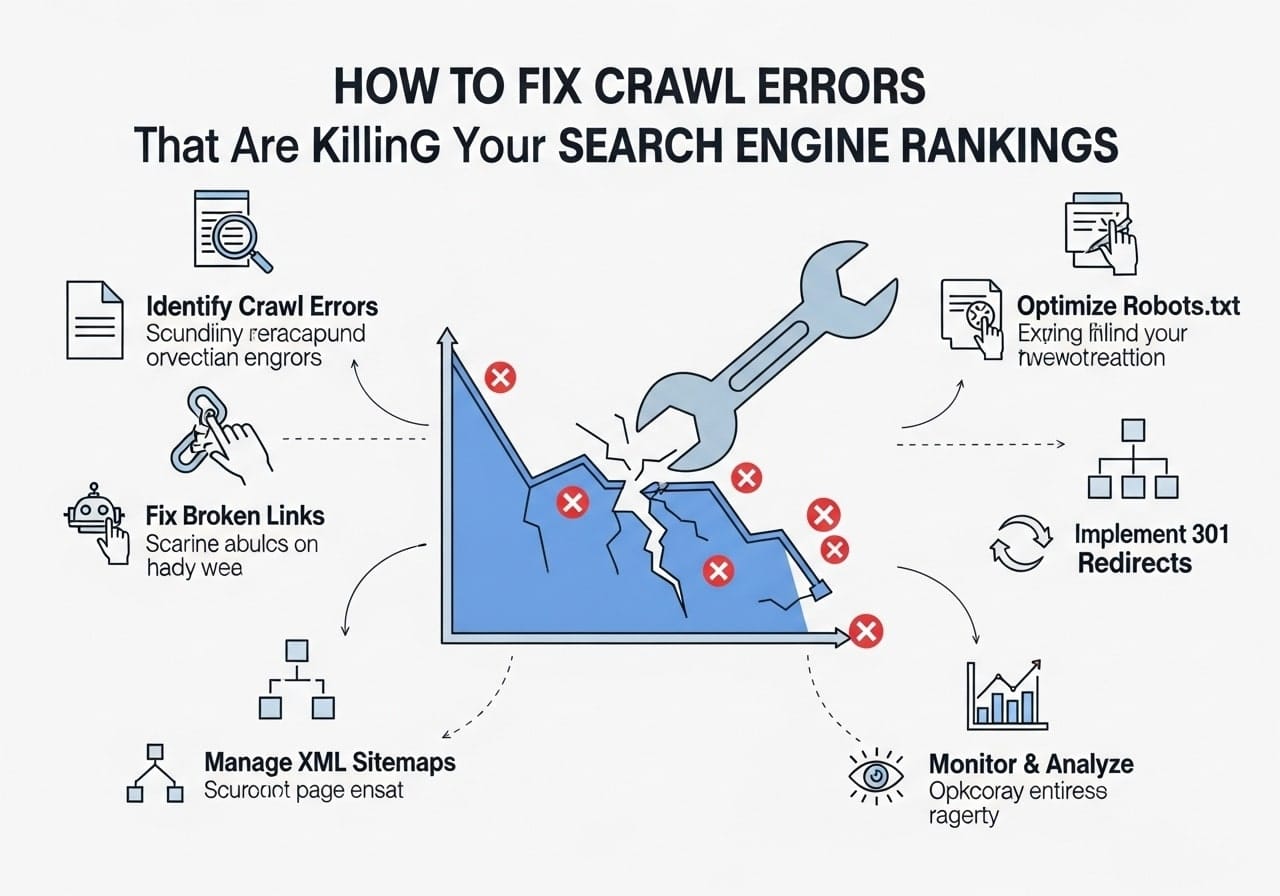
Knowing how to fix crawl errors is essential for maintaining healthy website performance and search engine visibility. Crawl errors in SEO can seriously damage your site’s ability to rank well in search results, making it crucial to identify and resolve these issues quickly.
What Are Crawl Errors in SEO?
Search engine crawl errors occur when Google’s web crawler (Googlebot) encounters problems while trying to access and index your website pages. These errors prevent search engines from properly understanding your content, which directly impacts your SEO performance.
When you encounter crawl errors, it means the Google crawler cannot successfully navigate through your website. This creates a barrier between your content and search engine users who might be looking for exactly what you offer.
Why Crawl Errors Matter for Your Website
Search engines like Google use automated programs called crawlers to discover and index web content. When these Google crawling processes hit roadblocks, your pages might not appear in search results at all. This makes understanding what are search engine crawl errors absolutely vital for website owners.
Crawl errors SEO impact includes:
- Lower search engine rankings
- Reduced organic traffic
- Poor user experience
- Decreased website authority
- Lost conversion opportunities
How to Check Crawl Errors Using Google Search Console
The most reliable way to monitor crawl errors Google Search Console, which provides several tools to help you identify problems. Here’s how you can access this information:
Accessing Google Search Console
- Log into your Google Search Console account
- Select your website property
- Navigate to the “Coverage” section under “Index”
- Review the “Errors” tab for detailed information
The Google Search Console crawl errors section shows you exactly which pages are experiencing problems. You’ll see specific error types, affected URLs, and when Google last attempted to crawl each page.
Understanding the Crawl Stats Report
The Crawl Stats report provides valuable insights into how Googlebot interacts with your website. This report shows:
- Number of pages crawled per day
- Kilobytes downloaded per day
- Time spent downloading pages
- Response time patterns
This data helps you understand if there are systematic issues affecting Google crawling website processes.
Common Types of Crawl Errors
Understanding different types of crawl errors helps you apply the right fixes. Here are the most common issues you’ll encounter:
Server Errors (5xx)
- 500 Internal Server Error: Server cannot complete the request
- 502 Bad Gateway: Invalid response from upstream server
- 503 Service Unavailable: Server temporarily overloaded
- 504 Gateway Timeout: Server took too long to respond
Client Errors (4xx)
- 404 Not Found: Page doesn’t exist
- 401 Unauthorized: Access requires authentication
- 403 Forbidden: Server refuses to fulfill request
- 410 Gone: Page permanently removed
DNS Errors
- DNS timeout: Server took too long to respond
- DNS lookup failure: Domain name cannot be resolved
- DNS server unavailable: Cannot connect to DNS server
Robots.txt Issues
- Robots.txt unreachable: Cannot access robots.txt file
- Invalid robots.txt format: File contains syntax errors
How to Fix Crawl Errors and Improve Your Website SEO
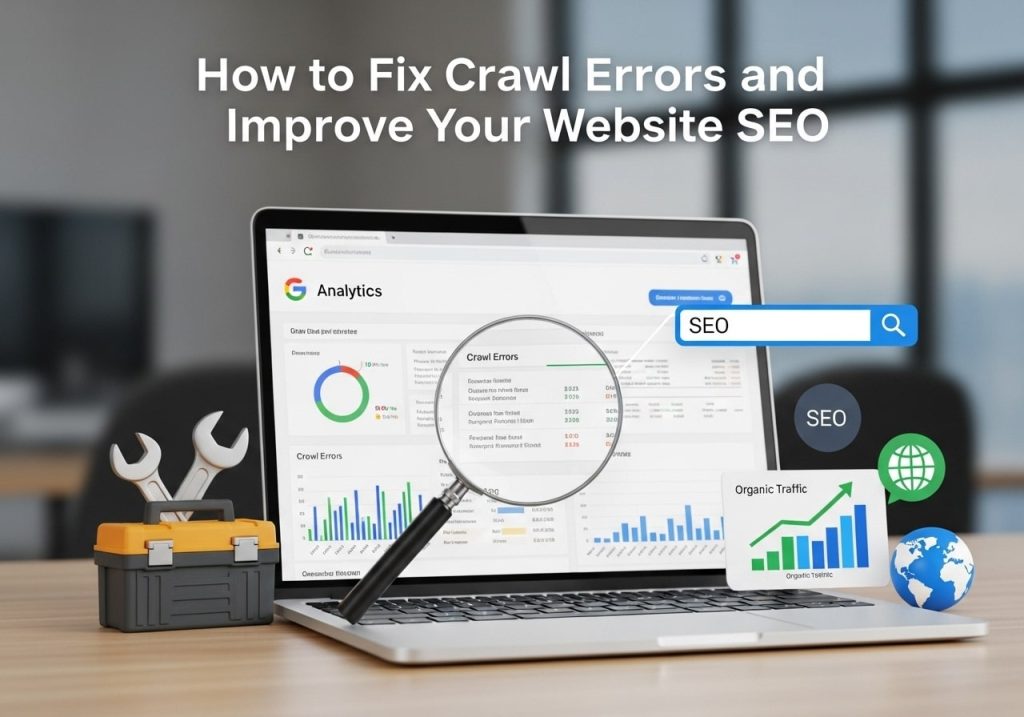
Now let’s dive into the practical steps for resolving these issues. This comprehensive approach will help you systematically address how to fix crawl errors in Google Webmaster Tools.
Step 1: Identify and Prioritize Errors
Start by reviewing your Google SEO crawl errors in Search Console. Focus on:
- High-traffic pages with errors
- Important conversion pages
- Recently broken links
- Pages with multiple incoming links
Step 2: Fix Server Errors
Server errors require technical attention:
For 500 Internal Server Errors:
- Check server logs for specific error details
- Review recent code changes or updates
- Verify database connections
- Contact your hosting provider if needed
For 502/503/504 Errors:
- Monitor server resources (CPU, memory, disk space)
- Check for traffic spikes causing overload
- Review server configuration settings
- Consider upgrading hosting if necessary
Step 3: Resolve Client Errors
Client errors are often easier to fix:
For 404 Not Found Errors:
- Verify if the page should exist
- Create the missing page if needed
- Set up 301 redirects to relevant pages
- Update internal links pointing to missing pages
For 401/403 Errors:
- Review file permissions
- Check .htaccess rules
- Verify authentication requirements
- Ensure pages meant to be public are accessible
Step 4: Address DNS Problems
DNS errors require server-level fixes:
- Contact your domain registrar
- Verify nameserver settings
- Check DNS propagation status
- Consider using a reliable DNS provider
Fixing Crawl Errors & Broken Links
Fixing crawl errors & broken links requires a systematic approach to identify and repair connection issues throughout your website.
Internal Link Audit
Regularly audit your internal links to prevent crawl errors:
- Use tools like Screaming Frog or Xenu Link Sleuth
- Identify broken internal links
- Update or remove problematic links
- Implement proper URL structure
External Link Management
Monitor external links that might be causing issues:
- Check outbound links regularly
- Remove or update dead external links
- Use tools to monitor link health
- Consider using rel=”nofollow” for unreliable external sites
Creating Effective 301 Redirects
When pages are permanently moved or deleted:
Redirect 301 /old-page.html /new-page.html
This tells search engines the page has permanently moved and passes link equity to the new location.
Using Crawl Errors Checker Tools
Besides Google Search Console, several crawl errors checker tools can help identify issues:
Free Tools
- Google Search Console: Primary source for crawl error data
- Bing Webmaster Tools: Microsoft’s equivalent platform
- Screaming Frog SEO Spider: Free version for smaller sites
Premium Tools
- Ahrefs Site Audit: Comprehensive crawl error detection
- SEMrush Site Audit: Detailed technical SEO analysis
- Moz Pro: For those learning how to fix Moz crawl test errors
How to Fix Moz Crawl Test Errors
When using Moz’s crawler:
- Run a site crawl in Moz Pro
- Review the “Crawl Issues” section
- Export error reports for detailed analysis
- Follow Moz’s specific recommendations
- Re-run crawls to verify fixes
Managing Googlebot Crawl Rate and Crawl-Delay
Sometimes you need to control how search engines crawl your site. Here’s how to manage the Googlebot crawl rate and implement crawl-delay settings.
Understanding Crawl Budget
Every website has a crawl budget – the number of pages Google will crawl in a given timeframe. Poor crawl error management wastes this budget on broken pages instead of valuable content.
Using Robots.txt Crawl-Delay
The robots.txt crawl-delay directive helps control crawling speed:
User-agent: *
Crawl-delay: 10
This tells crawlers to wait 10 seconds between requests. Use this carefully, as excessive delays can hurt indexing.
Change Googlebot Crawl Rate
You cannot directly control Google’s crawl rate, but you can influence it:
- Improve site speed and server response times
- Fix crawl errors promptly
- Maintain consistent website availability
- Use proper XML sitemaps
- Optimize internal linking structure
How to Fix Crawl Errors Impacting Search Rankings
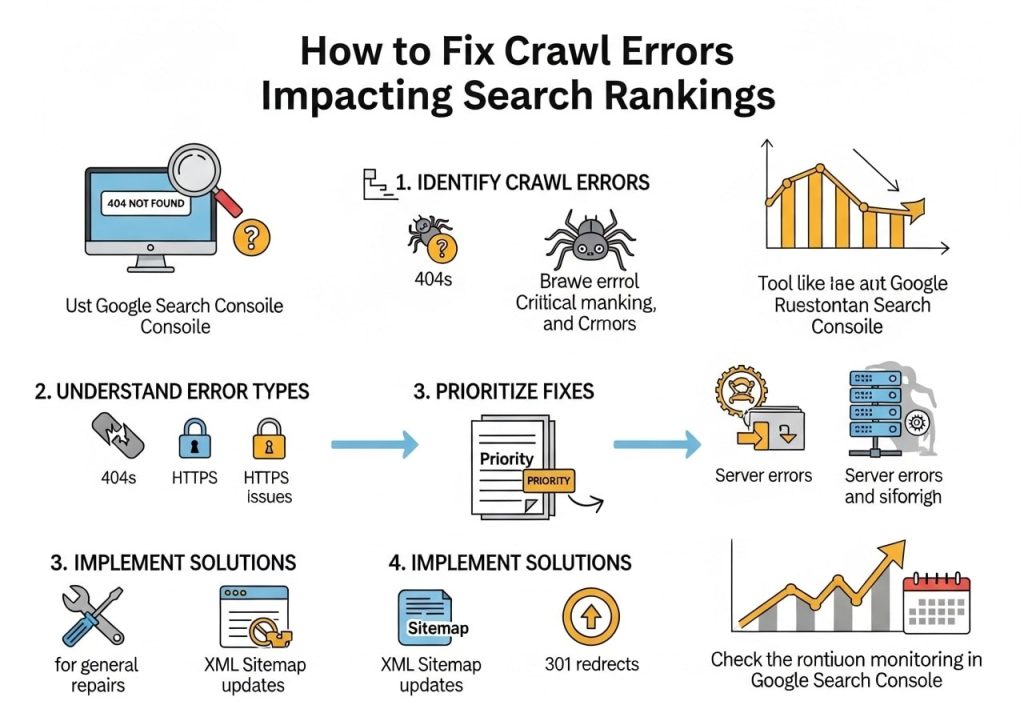
How to fix crawl errors impacting search rankings requires understanding the connection between technical issues and SEO performance.
Priority-Based Approach
Focus your efforts on errors that most impact rankings:
High Priority:
- Homepage crawl errors
- Main category pages
- Top-performing content pages
- Pages with high-quality backlinks
Medium Priority:
- Product or service pages
- Blog posts with decent traffic
- Pages in XML sitemap
Low Priority:
- Old, outdated content
- Duplicate pages
- Admin or utility pages
Monitoring Recovery
After implementing fixes:
- Submit updated pages for re-indexing in Search Console
- Monitor the Coverage report for improvements
- Track ranking changes for affected pages
- Watch for traffic recovery over 2-4 weeks
- Document successful solutions for future reference
Preventing Future Crawl Issues
Prevention is better than fixing problems after they occur. Here are strategies to minimize future crawl errors:
Regular Website Maintenance
- Schedule monthly crawl error checks
- Set up automated monitoring alerts
- Perform regular link audits
- Keep software and plugins updated
- Monitor server performance metrics
Implementing Proper Website Architecture
- Use logical URL structures
- Implement breadcrumb navigation
- Create comprehensive XML sitemaps
- Maintain clean internal linking
- Follow SEO best practices consistently
Server and Technical Monitoring
- Set up uptime monitoring
- Monitor server response times
- Regularly backup your website
- Keep hosting resources adequate for traffic
- Implement proper caching strategies
Error Handling Best Practices
Create custom 404 pages that:
- Acknowledge the error clearly
- Provide navigation options
- Include search functionality
- Suggest related content
- Maintain your site’s design consistency
Solving Advanced Crawling Issues
How to solve crawling issues that are more complex requires deeper technical knowledge and systematic troubleshooting.
When You See “We Encountered an Error That Stopped Us from Crawling Your Website”
This message in Search Console indicates serious crawling problems:
- Check Server Logs: Look for patterns in error timestamps
- Review Recent Changes: Identify any updates that might have caused issues
- Test Website Accessibility: Use online tools to verify site availability
- Contact Hosting Provider: Discuss server-level issues
- Implement Monitoring: Set up alerts for future problems
Using Google Crawler Tools Effectively
The Google crawler tool ecosystem includes:
- URL Inspection Tool: Test individual pages
- Mobile-Friendly Test: Check mobile crawling issues
- PageSpeed Insights: Identify performance-related crawl problems
- Rich Results Test: Verify structured data crawling
Advanced Robots.txt Configuration
Beyond basic crawl-delay settings, optimize your robots.txt:
User-agent: *

Disallow: /admin/

Disallow: /temp/

Disallow: /*.pdf$

Allow: /public/

Sitemap: https://yoursite.com/sitemap.xml
This configuration helps the Google website crawler focus on important content while avoiding problematic areas.
Understanding how to fix crawl errors is an ongoing process that requires consistent monitoring and maintenance. By following this comprehensive guide, you’ll be able to identify, fix, and prevent crawl errors that could hurt your website’s search engine performance. Remember to check your crawl errors regularly, prioritize fixes based on impact, and maintain good technical SEO practices to keep your website healthy and searchable.
Ready to improve your website’s crawl health? Start by checking your Google Search Console today and implement these strategies to boost your SEO performance.
FAQs
What exactly are crawl errors?
Crawl errors happen when search engines like Google try to visit your website pages but can’t access them for some reason. These errors prevent search engines from reading and indexing your content, which means your pages won’t show up in search results.
How do I know if my website has crawl errors?
You can check for crawl errors using Google Search Console (it’s free). Just log into your account, go to the Coverage section, and you’ll see all the errors Google found while trying to crawl your site. You can also use tools like Screaming Frog or check your server logs.
What are the most common types of crawl errors I should watch out for?
The main crawl errors include 404 errors (page not found), 500 errors (server problems), redirect chains, blocked pages in robots.txt, and timeout issues. 404s are probably the most common – they happen when you delete or move pages without setting up proper redirects.
Do crawl errors really hurt my search rankings?
Yes, they can seriously damage your rankings. When search engines can’t crawl your pages, those pages won’t get indexed or ranked. Plus, too many crawl errors make your site look poorly maintained, which search engines don’t like. It’s like having broken links everywhere – it creates a bad user experience.
How do I fix 404 errors on my website?
For 404 errors, you have two main options. If the page still matters, restore it or create new content for that URL. If the page is no longer needed, set up a 301 redirect to send visitors to a relevant page instead. Don’t just leave broken links hanging around.
What should I do about server errors (5xx errors)?
Server errors mean there’s a problem with your hosting or website setup. Check with your web host first – they might be having server issues. Also look at your website’s plugins, themes, or recent changes that might be causing conflicts. Sometimes clearing your site’s cache helps too.
How often should I check for crawl errors?
Check your Google Search Console at least once a week. Set up email notifications so Google alerts you when new errors pop up. The sooner you catch and fix crawl errors, the less damage they’ll do to your search rankings.
Can my robots.txt file cause crawl errors?
Absolutely. If you accidentally block important pages in your robots.txt file, search engines can’t crawl them. Double-check your robots.txt file (usually found at yoursite.com/robots.txt) and make sure you’re not blocking pages you actually want indexed.
What’s the difference between soft 404s and regular 404s?
Regular 404s properly tell search engines “this page doesn’t exist.” Soft 404s are tricky – they look like they’re working but actually show error content while returning a 200 status code. Search engines get confused by soft 404s, so fix them by either returning proper 404 codes or creating real content.
How long does it take for Google to recognize that I’ve fixed crawl errors?
Google usually notices fixes within a few days to a couple weeks, depending on how often they crawl your site. You can speed things up by using the URL inspection tool in Google Search Console to request re-crawling of specific pages you’ve fixed. Just be patient – good things take time.