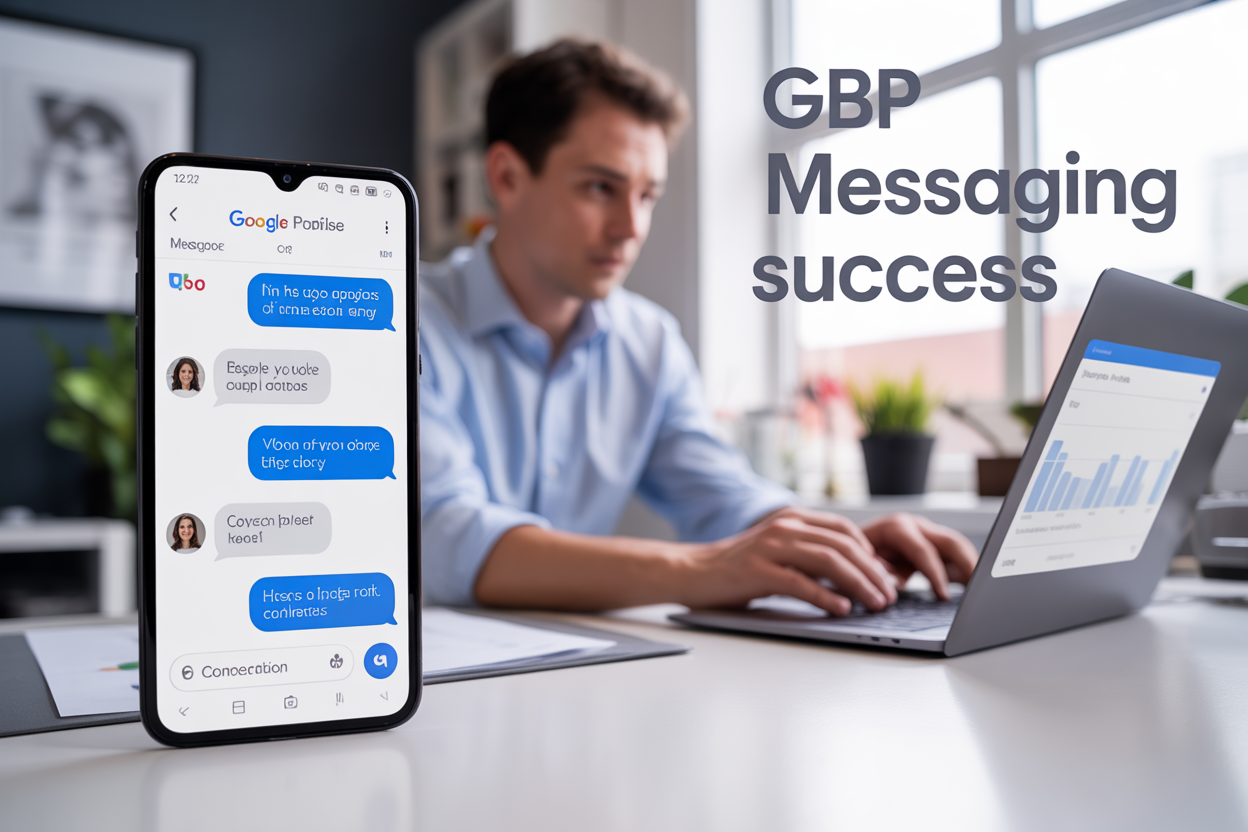
Google Business Profile messaging transforms how local businesses talk directly with customers who find them online. This powerful feature lets you respond to questions, book appointments, and build relationships right from your business listing.
Small business owners, local service providers, and retail managers can use GBP messaging to turn casual browsers into loyal customers. When someone searches for your business on Google, they can start a conversation instantly without leaving the search results.
We’ll walk you through setting up your GBP messaging system to capture more leads and keep customers engaged. You’ll also learn how to craft messages that feel personal and professional, plus discover proven strategies for managing multiple customer conversations without dropping the ball.
Understanding GBP Messaging and Its Customer Connection Benefits

What GBP messaging is and how it works
Google Business Profile messaging is a direct communication channel that allows customers to send messages to your business through your Google Business Profile listing. When you enable messaging on Google Business Profile, customers can click the message button on your listing and start a conversation directly with your business through text messages.
The system works seamlessly across devices – customers can initiate conversations from desktop searches, Google Maps, or mobile devices. Once a customer sends a message, you receive it as an SMS on your registered phone number or through the Google My Business messaging tool. You can respond directly from your phone or use the Google My Business app to manage conversations.
The google business profile chat feature operates in real-time, creating an instant connection between your business and potential customers. Unlike traditional contact methods, GBP messaging eliminates barriers like phone tag or email delays. Customers can ask questions about your hours, services, or availability while they’re actively searching for businesses like yours.
Setting up is straightforward – you simply need to enable messaging on google business profile through your dashboard and verify your phone number. The google business messaging app allows you to manage multiple conversations efficiently, set up auto-replies for common questions, and track message history with customers.
Key advantages over traditional communication methods
GBP messaging offers significant advantages over phone calls, emails, and contact forms. Speed ranks as the primary benefit – customers get immediate responses during business hours, and even automated replies provide instant acknowledgment outside operating hours.
Convenience plays a major role in customer preference. Many people feel more comfortable texting than making phone calls, especially for simple inquiries. The google business profile messages system allows customers to multitask while communicating with your business, making it easier for them to engage.
| Traditional Method | GBP Messaging |
|---|---|
| Phone calls require immediate attention | Messages can be read and responded to when convenient |
| Email often gets lost in spam folders | Messages appear directly on customer’s phone |
| Contact forms feel impersonal | Real-time conversation builds rapport |
| No conversation history | Complete message thread preserved |
The messaging platform also provides better documentation than phone calls. Every conversation creates a record you can reference later, helping you track customer preferences and follow up on previous interactions. This historical context improves customer service quality and helps build stronger relationships over time.
Response flexibility gives businesses an edge – you can send photos, location details, or links directly through the messaging interface. This multimedia capability makes it easier to answer complex questions or showcase products and services visually.
Impact on customer engagement and business growth
Businesses using google business messaging typically see increased customer engagement rates compared to traditional contact methods. The immediate nature of messaging encourages more customers to reach out with questions they might not have bothered asking through other channels.
Customer satisfaction improves when businesses respond quickly to messages. Studies show that customers expect responses within a few hours during business hours, and meeting these expectations directly influences purchasing decisions. The google my business messaging tool allows customers to get answers when they need them most – during the decision-making process.
Local search performance gets a boost when you actively use GBP messaging. Google factors business responsiveness into local ranking algorithms, rewarding businesses that engage effectively with customers. Active messaging demonstrates to Google that your business provides good customer service, which can improve your visibility in local search results.
Revenue impact becomes apparent through improved conversion rates. When customers can quickly get answers to their questions, they’re more likely to choose your business over competitors. Many businesses report that customers who engage through messaging convert at higher rates than those who only view their listing.
The connect with customers via GBP approach also generates valuable customer insights. Message conversations reveal common questions, concerns, and interests that can inform your marketing strategy and service improvements. This direct feedback loop helps businesses adapt their offerings to better meet customer needs.
Customer retention benefits from the personal touch that messaging provides. Unlike automated systems, GBP messaging creates genuine human connections that customers remember and value when making repeat purchasing decisions.
Setting Up Your GBP Messaging System for Maximum Effectiveness
Enabling messaging features in your Google Business Profile
Getting your GBP messaging up and running is pretty straightforward, but there are a few steps you need to follow to make sure everything works smoothly. First, log into your Google Business Profile dashboard and look for the “Messaging” option in the left sidebar. If you don’t see it right away, check under “Customers” – that’s where Google sometimes tucks it away.
Click on the messaging feature and you’ll see a toggle switch to turn it on. Once you flip that switch, your customers can start sending you messages directly from your business listing on Google Search and Maps. The setup process takes just a few minutes, but make sure you’ve verified your business profile first – Google won’t let you use messaging without that verification step.
After enabling the feature, you’ll get a preview of how your messaging will look to customers. Take a moment to review this because it’s what people will see when they want to reach out to you. The system automatically creates a chat interface that appears when customers click the “Message” button on your listing.
Configuring automated responses and business hours
Smart automation can save you tons of time while keeping customers happy. Start by setting up your business hours for messaging – this tells Google when you’re available to respond in real-time. Go to the messaging settings and you’ll find options to set different hours for different days of the week.
Your automated responses are crucial for managing customer expectations. Create a welcome message that greets customers when they first contact you. Something like “Hi! Thanks for reaching out to [Business Name]. We typically respond within 2-4 hours during business hours. How can we help you today?” works well.
Don’t forget to set up an away message for when you’re closed. This could say something like “Thanks for your message! We’re currently closed but will get back to you first thing tomorrow morning.” You can also create specific auto-replies for common questions like hours, location, or services.
The key is being clear about response times. If you can’t check messages every hour, don’t promise you will. Setting realistic expectations prevents frustrated customers and helps build trust from the start.
Integrating messaging with your existing customer service workflow
Your GBP chat feature shouldn’t exist in a bubble – it needs to work smoothly with how you already handle customer service. If you’re using a CRM system, look into whether it can pull in messages from Google Business Profile. Many popular CRM platforms now offer integrations that automatically create tickets or leads from your GBP messages.
For businesses without fancy CRM systems, consider using a shared email approach. You can set up notifications so that all team members who handle customer service get alerted when new messages come in. This prevents messages from falling through the cracks.
Create standard operating procedures for your team about how to handle different types of messages. Quick questions about hours or directions can get immediate responses, while complex service inquiries might need to be escalated to specific team members. Having these workflows mapped out before you go live saves confusion later.
Think about your current customer service channels too. If someone starts a conversation on GBP messaging, make sure your team knows how to smoothly transfer them to phone support if needed, or how to follow up via email for more detailed discussions.
Setting up team access and notification preferences
Managing who can access and respond to your GBP messages is critical for maintaining professional communication. In your Google Business Profile settings, you can invite team members and assign different permission levels. Some people might need full access to manage all aspects of your profile, while others only need access to respond to messages.
When adding team members, use their work email addresses and assign the most restrictive permissions that still allow them to do their job. This keeps your account secure while making sure the right people can help customers.
Notification settings can make or break your response time. Set up email notifications so your team gets alerted immediately when new messages arrive. Most businesses find that having 2-3 people receive notifications works best – enough coverage without overwhelming anyone’s inbox.
Consider setting up different notification schedules for different team members. Maybe your morning person gets alerts from 9 AM to 2 PM, while your afternoon person covers 2 PM to closing. Mobile notifications through the Google My Business app can also help team members stay on top of messages when they’re away from their computers.
Test your notification system before going live. Send a few test messages to make sure alerts are working properly and reaching the right people at the right times.
Crafting Messages That Build Strong Customer Relationships

Writing Welcoming and Professional Initial Responses
Your first response sets the tone for the entire customer relationship through GBP messaging. When someone reaches out via Google Business Profile messages, they’re often looking for quick answers or immediate help. A warm, professional greeting shows customers they’ve reached the right place.
Start with a friendly acknowledgment that shows you’ve received their message. Something like “Hi Sarah, thanks for reaching out!” feels personal and immediate. Then address their specific question or concern directly. Avoid generic responses that could apply to anyone – customers can spot copy-paste replies from miles away.
Speed matters just as much as tone. The Google My Business messaging tool allows customers to connect with you in real-time, so they expect relatively quick responses. Even if you can’t solve their problem immediately, acknowledge their message within a few hours during business hours.
Personalizing Messages Based on Customer Inquiries
Every customer inquiry is unique, and your responses should reflect that. When someone asks about your restaurant’s gluten-free options, don’t just send a link to your menu. Mention specific dishes, explain your preparation methods, and maybe share that your chef has celiac experience.
The GBP chat feature gives you context clues about customers. Their Google profile might show previous reviews or interactions with your business. Use this information thoughtfully – if they’ve been a customer before, acknowledge their loyalty. If they left a positive review last month, thank them for their feedback.
Create response templates for common inquiries, but always customize them. Your template for appointment scheduling should include the customer’s name, preferred dates they mentioned, and specific services they’re interested in. This personalization shows you’re paying attention and value their individual needs.
Using Tone and Language That Reflects Your Brand Voice
Your Google Business Profile messaging should sound exactly like your brand. If you run a playful boutique, inject some personality into your responses. If you operate a law firm, maintain professionalism while staying approachable.
Consider your typical customer when crafting messages. A skateboard shop can use casual language and emoji, while a financial planning service might stick to clear, straightforward communication. The key is consistency – your messaging tone should match your website, social media, and in-person interactions.
Pay attention to regional language preferences and cultural considerations. If your business serves a local community, using familiar local references or terminology can create stronger connections. Just avoid slang that might confuse or alienate customers.
Balancing Automation with Human Touch
Google Business Messaging offers automation features that can handle basic inquiries, but knowing when to step in personally makes all the difference. Auto-replies work great for immediate acknowledgments, business hours, and frequently asked questions about location or services.
Set up Google My Business message auto reply for after-hours inquiries, letting customers know when they can expect a personal response. But complex questions, complaints, or sales inquiries need human attention. Customers can usually tell when they’re talking to a bot, and switching to personal responses at the right moment shows you care about their experience.
Train your team on when to take over from automated responses. If a customer seems frustrated or has a unique situation, that’s when human empathy and problem-solving skills become invaluable. The GBP chatbox should feel like a helpful extension of your business, not a barrier to real communication.
Including Helpful Links and Resources in Responses
Make your GBP chat conversations more valuable by sharing relevant resources. Instead of just telling a customer about your return policy, send them a direct link. If they ask about product availability, link to the specific item on your website.
Organize your most useful links for quick access during conversations. Your team should have easy access to:
- Online booking systems
- Product catalogs
- FAQ pages
- Location and parking information
- Special offers or promotions
Share resources strategically – don’t overwhelm customers with multiple links in one message. Start with the most relevant resource, then offer additional information if they want more details. This approach keeps the conversation flowing naturally while providing maximum value.
Remember that the Google My Business messaging tool allows customers to save important information from your conversations. When you share helpful resources, you’re creating a reference they can return to later, building long-term value from every interaction.
Managing Customer Conversations Like a Pro

Responding quickly to maintain customer satisfaction
Speed matters when it comes to GBP messaging. Customers who reach out through your Google Business Profile messages expect quick responses, often within minutes rather than hours. Setting up instant notifications on your phone ensures you never miss an important message. Most successful businesses aim to respond within 15-30 minutes during business hours.
Quick responses show customers you value their time and business. Even if you can’t solve their problem immediately, acknowledging their message with something like “Thanks for reaching out! I’ll get back to you with details in about an hour” keeps them engaged and prevents frustration.
Consider using Google My Business message auto reply features for common questions. Set up automatic responses for frequently asked questions about hours, location, or basic services. This gives customers instant information while buying you time to craft a more detailed follow-up response.
Handling different types of inquiries effectively
Different customer inquiries require different approaches through your GBP chat feature. Product questions need specific details and maybe photos or links. Service inquiries might require scheduling or availability discussions. Complaint handling demands empathy and immediate action plans.
Create response templates for common inquiry types to maintain consistency while speeding up your replies. For product questions, include relevant details, pricing, and availability. For appointment requests, offer specific time slots and confirmation processes. And complaints, acknowledge the issue, apologize when appropriate, and outline clear next steps.
Common inquiry types and best practices:
| Inquiry Type | Best Response Strategy |
|---|---|
| Product questions | Provide details, photos, pricing, availability |
| Service bookings | Offer specific times, confirm requirements |
| Complaints | Acknowledge, apologize, provide action plan |
| General info | Quick facts, direct to website for more details |
| Price inquiries | Clear pricing, explain any variables or packages |
Escalating complex issues to appropriate team members
Not every conversation can be handled by the person monitoring your Google Business Profile messaging. Complex technical issues, billing problems, or specialized service requests often need expert attention. Create a clear escalation process that moves conversations smoothly without losing customer context.
When escalating, brief the receiving team member about the customer’s situation, previous communications, and any promises made. This prevents customers from repeating their story multiple times, which creates frustration and wastes everyone’s time.
Set up your GBP messaging system so multiple team members can access conversations when needed. This allows for seamless handoffs and ensures someone can always respond, even when the primary contact person is unavailable.
Following up on unresolved conversations
Unresolved conversations in your Google Business Profile messages can damage customer relationships and hurt your business reputation. Create a system to track open issues and set reminders for follow-ups. Most customers appreciate proactive updates, even if their problem isn’t solved yet.
Schedule follow-ups based on the complexity and urgency of each issue. Simple questions might need follow-up within 24 hours, while complex problems could require weekly check-ins. Use your Google Business messaging app to set reminders and track conversation status.
When following up, reference previous conversations and provide specific updates about progress. If resolution is taking longer than expected, explain why and give realistic timelines. This transparency builds trust and shows customers you haven’t forgotten about their concerns.
Keep detailed records of all conversations and resolutions. This information helps identify common issues, improve your products or services, and train team members on effective GBP chat responses. Regular review of conversation patterns also reveals opportunities to update your auto-reply messages and FAQ responses.
Measuring Success and Optimizing Your GBP Messaging Strategy

Tracking Key Messaging Metrics and Response Times
Success in GBP messaging starts with monitoring the right numbers. Your response time stands as the most critical metric—customers expect businesses to reply within minutes, not hours. Track your average response time daily and aim for responses under five minutes during business hours.
Keep tabs on message volume trends to spot peak hours and seasonal patterns. This data helps you staff appropriately and set realistic response expectations. Monitor your conversation conversion rate by tracking how many messaging conversations lead to actual sales, appointments, or other desired actions.
Weekly metrics worth tracking include:
- Total messages received
- Average response time
- Conversation-to-conversion rate
- Customer satisfaction ratings
- Repeat messaging customers
Google Business Profile messaging platforms provide built-in analytics, but consider using third-party tools for deeper insights. Set up automated alerts when response times exceed your targets or message volume spikes unexpectedly.
Analyzing Customer Feedback and Conversation Quality
Reading between the lines in your GBP chat conversations reveals goldmine insights about customer satisfaction and service gaps. Pay attention to recurring themes in customer messages—these patterns often highlight areas needing improvement.
Create a simple feedback classification system. Tag conversations as positive, neutral, or negative, then dig deeper into negative interactions to identify root causes. Look for phrases like “confusing,” “hard to find,” or “wish you offered” as signals for business improvements.
Review conversation transcripts monthly to assess your team’s communication quality. Strong conversations include:
- Quick acknowledgment of customer needs
- Clear, helpful responses
- Follow-up questions when appropriate
- Professional yet friendly tone
- Proper resolution or clear next steps
Screenshot particularly effective conversations to use as training examples. Share positive customer feedback with your team to reinforce good practices and boost morale.
Identifying Common Questions to Improve Automated Responses
Smart businesses use their GBP messaging data to build better automated responses. Start by categorizing incoming questions into themes like hours, location, pricing, services, or availability.
The top five question categories for most businesses are:
- Operating hours and holiday schedules
- Location and parking information
- Service pricing and availability
- Appointment booking procedures
- Product specifications or details
Once you identify these patterns, craft automated responses that address each category comprehensively. Your google business messaging app likely offers template options—use them strategically for these frequent inquiries.
Update your automated responses quarterly based on new question trends. Seasonal businesses should adjust templates monthly to reflect changing customer needs. Remember that effective automation handles routine questions instantly while seamlessly routing complex inquiries to human team members.
Test your automated responses regularly by having team members or friends message your business profile. This quality check ensures your automated system provides helpful, accurate information that truly serves your customers.

GBP messaging gives you a direct line to your customers right where they’re already looking – your Google Business Profile. From setting up your messaging system to crafting conversations that actually matter, you now have the tools to turn casual browsers into loyal customers. The key is staying authentic, responding quickly, and treating each message as a chance to show what makes your business special.
Don’t let this opportunity sit on the sidelines. Start by enabling messaging on your profile today, then focus on creating genuine connections with every customer who reaches out. Keep track of what’s working, adjust your approach when needed, and watch as these simple conversations transform into real business growth. Your customers are already there waiting to connect – all you have to do is start the conversation.
FAQs
What is GBP messaging exactly?
GBP messaging is the chat feature on your Google Business Profile that lets customers send you direct messages through Google Maps and Search. When people find your business online, they can ask questions or get information without having to call or visit your website.
How do customers actually send me messages through GBP?
Customers can message you by finding your business on Google Maps or Search, then clicking the “Message” button on your business profile. They can ask about your hours, services, prices, or anything else they want to know about your business.
Where do I see and respond to these messages?
You can see and reply to messages through the Google My Business app on your phone or through the Google Business Profile manager on your computer. Messages show up just like text messages, and you get notifications when new ones come in.
How fast should I reply to customer messages?
Try to respond within a few hours, or at least within 24 hours. Quick responses show customers you care about helping them, and Google actually tracks your response time and shows it on your profile as a badge.
Can I set up automatic replies for common questions?
Yes, you can create automated welcome messages and responses for frequently asked questions. This helps customers get quick answers even when you’re not available to respond right away.
What types of questions do customers usually ask through messaging?
Most customers ask about business hours, location, pricing, availability, services offered, and whether you’re currently open. Some also ask for directions or want to confirm appointments.
Is GBP messaging available for all types of businesses?
Most business types can use GBP messaging, but some categories like hotels or restaurants might have different messaging options. The feature is available in most countries where Google Business Profile operates.
Can I turn off messaging if I don’t want to use it?
Yes, you can disable messaging in your Google Business Profile settings. However, many businesses find it helpful for customer service and getting more customers, so consider giving it a try first.
Do these messages help my business show up better in search results?
While messaging itself doesn’t directly improve your search ranking, responding quickly and getting positive interactions can help your overall business profile performance and customer satisfaction.
What should I avoid saying in my message responses?
Keep responses professional and helpful. Don’t share personal information, argue with difficult customers in messages, or make promises you can’t keep. Also, avoid using messaging to constantly promote sales or offers.